
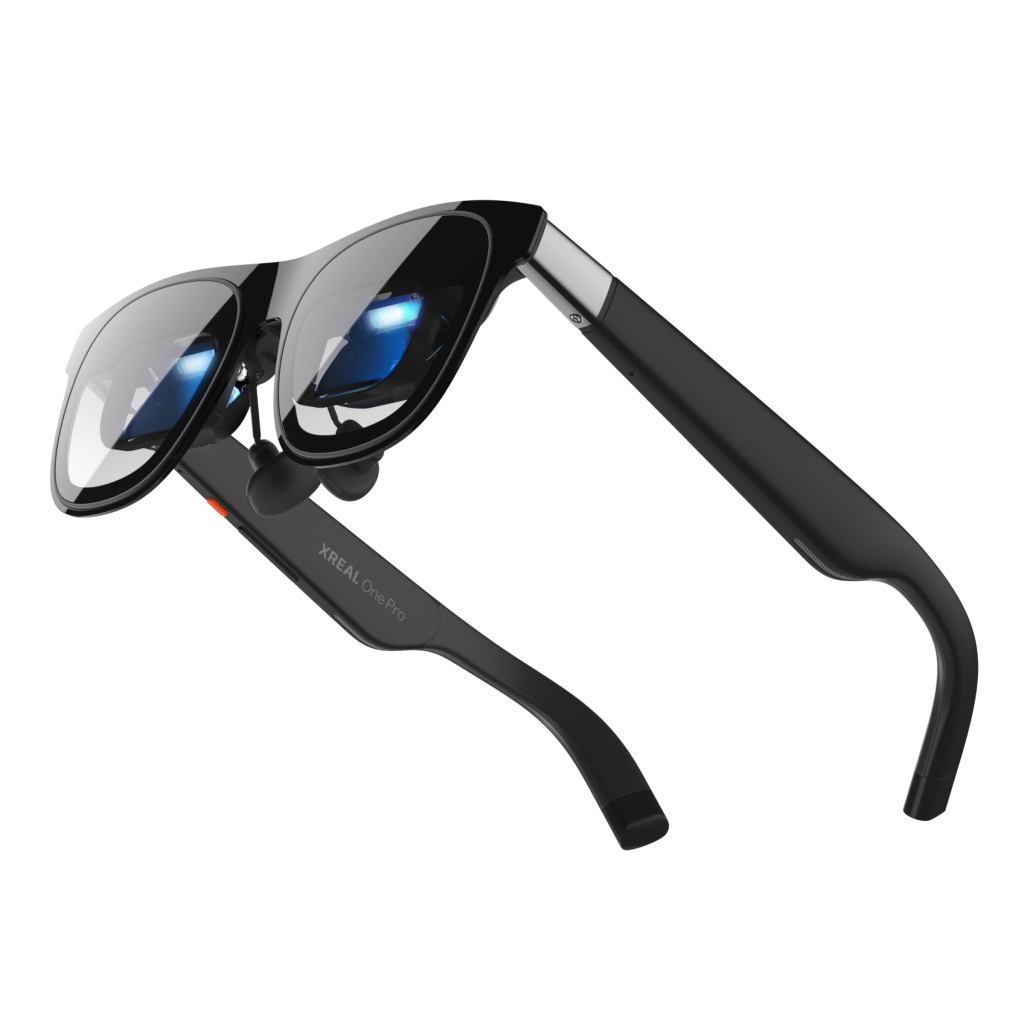
Start with the source device, not a replacement pair of glasses. A USB-C plug fitting into a phone or computer does not establish that the device can send a picture. USB-C may handle charging or file transfer without supporting video output. Before replacing your glasses, cable, or adapter, check whether the exact source-device model supports DisplayPort or an external display.
This is a researched troubleshooting guide, not a hands-on test of every glasses-and-device combination. The general checks apply to wired display glasses. The button instructions and console examples are specific to the XREAL One series.
Check whether the USB-C port actually sends video
Start with the manufacturer’s specifications for the exact phone or computer model. Look for DisplayPort output, USB-C video output, or external-display support. A connector’s shape, charging performance, or ability to transfer files does not confirm that it can carry a display signal.
Apple provides a useful concrete example. Its current support guidance lists iPhone 15 models, iPhone 16 models except 16e, and iPhone 17 models except 17e as supporting wired external displays through USB-C. Keep that information tied to the models Apple lists; do not extend it to every phone that uses USB-C. Apple also distinguishes its included charging cable from cables suitable for higher-bandwidth display connections. See Apple’s USB-C and external-display support guidance.
Before ordering anything, record the exact source-device model, glasses model, cable name, and every adapter in the connection. A product listing that says only “USB-C compatible” is not enough evidence for this setup. If the source manufacturer does not confirm video output, pause the purchase and ask about that specific model.
Match the symptom to the first check
| What happens | Check first | Do not assume |
|---|---|---|
| No startup logo appears on XREAL One | Reseat the official glasses cable, then try a source known to support DisplayPort output. | The glasses are necessarily defective. |
| A video-output warning appears | Confirm DisplayPort output on the exact source-device model. | Power reaching the glasses proves video support. |
| The connection works, but the screen seems missing | On XREAL One, hold the X button to recenter an anchored screen. | This button sequence applies to every glasses brand. |
| Only one streaming app displays a black screen | Check that app’s external-display restrictions. | A replacement cable will remove a content restriction. |
XREAL’s One-series troubleshooting page distinguishes connection failures from app restrictions. DRM or HDCP restrictions can block some content even when the connection works.
For persistent failures on a confirmed compatible source, contact manufacturer support before buying more accessories.
Run a controlled connection test
Our suggested diagnostic method is to change one variable at a time. First record what the original setup produces: a startup logo, a warning, a picture, or no visible response. Then test the supplied glasses cable with a source whose display-output support you have already confirmed. Keep the glasses and cable unchanged so the source-side setup is the main difference.
If the second setup works, that is a useful lead. Investigate the original phone or computer, then the adapters or other accessories removed from the chain. The result does not prove that every unchanged component is fault-free, but it gives support a meaningful comparison instead of a general report that “the screen does not work.”
If both setups fail, record both results and provide them to the glasses manufacturer. The comparison narrows the investigation, but it does not conclusively identify a defective component. Avoid treating a single successful or failed test as a universal verdict on every source, cable, or glasses model.
Evaluate cables before buying one
For any replacement cable, require confirmation of video support for the exact source-and-glasses combination. Charging wattage, connector shape, cable length, and a generic “USB-C compatible” label are insufficient on their own. A cable can fit physically and charge a device while failing to carry the display signal the glasses require.
Ask the seller or manufacturer to identify the supported video standard and the intended direction of the connection. Keep the model names in the question: source device, glasses, cable, and any adapter. This is more useful than relying on a cable description written for a different phone, computer, or display.
Owners of VITURE, RayNeo, or Rokid products should use those manufacturers’ model-specific documentation. XREAL’s controls, cable guidance, and accessory assumptions should not be copied to another brand. Compatibility information for one glasses family does not establish compatibility for another.
Handle HDMI consoles as a separate case
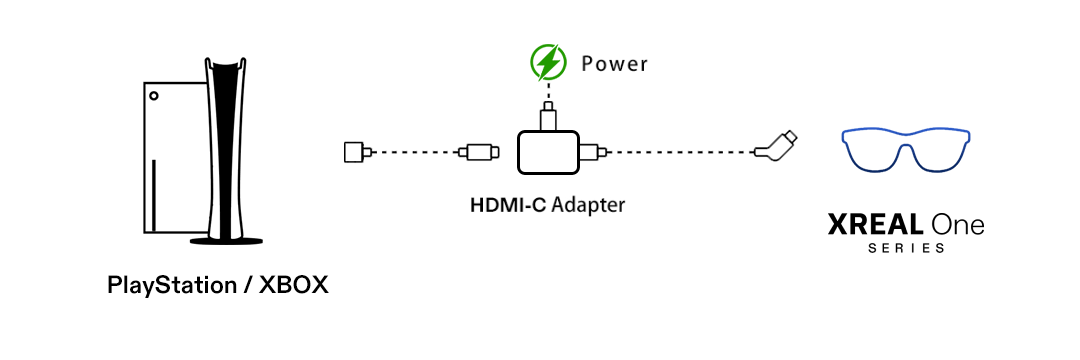
For the XREAL One series, XREAL explains that PlayStation and Xbox consoles provide HDMI, while the glasses require a DisplayPort video signal and power. The connection therefore needs an adapter that handles the conversion and the required power arrangement. See the official console connection instructions.
Check the adapter’s stated input and output rather than relying on the two connector names in a product title. Confirm the conversion direction, ask whether the supplier supports console-to-glasses operation, and verify where the adapter receives power. A listing for sending a computer’s USB-C output to an HDMI television describes a different direction. It does not confirm that the same product can connect an HDMI console to display glasses.
The supplied XREAL diagram illustrates its One-series console setup. It is not a universal compatibility promise, an endorsement of an unnamed adapter, or confirmation that the arrangement works with other glasses. If a retailer cannot confirm the complete console-to-adapter-to-glasses chain, obtain a model-specific recommendation before spending money.
Escalate with useful evidence
When contacting support, include the source-device model, glasses model, cable and adapter names, the exact warning text, and the result of each controlled test. State whether the failure occurs everywhere or only in one app. Also note whether the glasses show a startup logo, display a warning, or remain apparently inactive.
That information is more actionable than a broad claim that the display is broken. It helps separate source compatibility, cable or adapter behavior, screen-position controls, and app-specific restrictions.
Establish compatibility with the device you already own before comparing virtual screen size or premium features. Confirm video output first, then evaluate the rest of the glasses.
Continue Reading
- Compare AR display glasses for movies and gaming once your source-device requirements are clear.
- XREAL One Pro guide for the product’s broader buying tradeoffs.
- Smart glasses types explained if you are unsure whether you need display glasses or camera glasses.

 PlayTechDeep VR